ProZ.com frequently asked questionsProfiles Main Main
1 - Profiles: general Video tutorial: "Getting the most out of your ProZ.com profile" 1.1 - What types of profiles are available at ProZ.com? When registering at ProZ.com you can create a profile of any of the following account types:
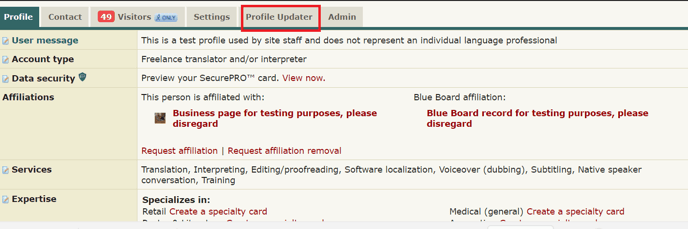
1.1 - How can I set my account type? You can set your account type by clicking on Profile updater in your main profile page, choosing among the profile types available and clicking on Save and update profile at the bottom of the page. 1.2 - Which account type should I choose?
1.3 - At the time I registered I selected a certain account type, but now I think a different account type will reflect my current situation more accurately. Can I change my account type? Yes, you can edit your account type to suit your preferences from the ProZ.com Account section of your Profile updater. Make sure to click on Save and update profile once you are done. 1.4 - I am listed as an agency but I also work as a freelancer, should I have two profiles? No, you don't need to have two profiles. Many agencies in the site are listed as both agencies and freelancers. To be recognized as both, all you need to do is go to your Profile updater and select the option Freelancer and outsourcer for Account type. 1.2 - How do I begin completing my new profile? Go to your Profile updater to update your profile, including contact information, financial information, and more. Make sure to click on Save and update profile once you are done. 2.1 - How can I edit/update the information in my profile? There are two ways of editing the information in your profile:
2.2 - Why are certain fields classified as required or encouraged? The classification of a profile field as required or encouraged (as opposed to simply available) corresponds to the possible contribution of that field to the goal of helping to ensure that a profile owner gets the most out of ProZ.com. 1.3 - What is my profile ID/number? Your profile ID/number is the last number at the end of your profile URL. To see it go to My profile and check the last number shown in the URL of your profile box at the top left of your profile. To create a profile simply register for free at www.proz.com/register 3.1 - What link should I provide my customers to direct them to my ProZ.com profile? You can find this information in your own profile, above your picture and username. 3.2 - Can I link to my ProZ.com profile from my personal website? Can I use the logo when I do so? Yes. You can find a comprehensive description of how to link to your profile in this page. 1.4 - How do I enter my first and last names in my profile? To enter your real name in your profile, visit the ProZ.com account section of your Profile updater and enter your first and last names in the Contact first name and Contact last name write-in fields respectively. Finally, click on Save and update profile at the bottom of the page to save your data. 4.1 - How do I hide or show my real name in my profile? You can chose to show or hide your real name in your profile at any time. Note that name changes may take up to one hour to become effective. 4.2 - Can I show my real name to outsourcers and my username to other users? Yes, all you have to do is enter your real name in your profile and choose the option to show it only to outsourcers in your Profile updater. Please note that this setting is based on account type, so your real name will not be shown to outsourcers who are not logged in, or those who have not properly classified their profiles. 4.3 - I do not want my real name to show in search engines. How can I change this? Profiles, similar to the forums and KudoZ, are public. This means that they can be indexed by search engines and displayed as part of search results. If you have chosen to show your real name as your site name (profile name) it is then possible that your real name is then shown as part of search engine results. If this is the case, and you want your name to stop showing in search engines results, start by changing your site name (profile name) at ProZ.com. To do so, go to your Profile updater and change your site name settings by selecting Show username, as used in login. Remember to click on Save and update profile at the bottom of the page. Note that this change may take a few minutes to become visible in your profile page. 4.4 - I changed my site name but search engines still show the old name. Why? When you chose to display a given site name (real name or username), it may be cached by some search engines. Thus, if you decide to change this name later, or to change visibility permissions for your site name, it will take a certain period of time for search engines to update their cache and stop showing the old profile or site name. 1.5 - Can I control the visibility of the information in my profile? Yes, you can control what profile visitors see in your profile in two ways, depending on the type of information you would like to show or hide:
5.1 - How do I change visibility settings for the Blue Board entries made by this user section of my profile? You can chose to hide your clients names or location by selecting the None visibility option for these areas from the Feedback section of your Profile updater. 1.6 - How can I see my profile as visitors would see it? To view your profile as any visitor would view it, simply click on Force visitor view at the top of your profile page. To go back, just click on Return to owner view. 1.7 - How can I change the title displayed in my profile? In order to add/edit the title displayed in your profile, go to the Settings tab and select the Search engine settings section. In this way you can edit the title displayed in your profile or leave this field blank to use a ProZ.com search engine optimized title. Please note that search engine indexes only show up to 60 characters. 1.8 - Can I add a tagline to my profile? Yes. You can add a short phrase that sums up your most important attribute as a service provider or outsourcer (or tagline) to show below your site name in your profile and in the directory. To enter a tagline, click on the small edit icon next to Edit your tagline, below your profile name. This will take you to the Marketing and promotion section of your Profile updater. Type in your tagline and then click on Save and update profile at the bottom of the page to save the changes. 1.9 - Can I add a user message to my profile? Yes. To add a user message to your profile, simply click on the small note pad next to User message in your profile main page, enter your message and click on Save. Note that user messages no longer support HTML tags. 1.10 - What kinds of content (text, HTML, etc.) can I put in my profile page? Only plain text and basic HTML can be used in profile pages. JavaScript, HTML tables, and other advanced techniques will usually not work. 1.11 - Can I use HTML in my personal information (first name, last name, username, etc.)? No, only plain text may be used in your personal information. HTML characters such as < or > will be converted to plain text. This also applies to your keywords and tagline. 1.12 - Can I control the language in which visitors see my profile? Yes. Go to the Settings tab in your profile, and click on Search engine settings. Under the default language, choose the language in which you would like visitors to view your profile and check the box to force that view. Any visitor who comes from another site and is not logged in to ProZ.com will automatically see your profile in the language you chose. 1.13 - Can I accept payments from my profile? Yes. You can accept payments directly from your profile using ProZ*Pay. You can also use other methods, as detailed in the related FAQs. 13.1 - How can I accept PayPal payments through my profile page? First, you need to set up a Paypal account. Go to PayPal and follow their sign-up steps.
13.2 - How can I accept Skrill payments through my profile page? Go to your Profile updater, click on the Financial section, and then enter the email address you used to set up your Skrill account in the Skrill email space provided under Payment methods. Make sure to click on Save and update profile once you are done. 13.3 - Can I accept other payment methods through my profile? Please contact the ProZ*Pay team or submit a support request to set up your bank account or other pay-out methods and receive payments directly through ProZ*Pay. 1.14 - Can I receive files through my profile? Yes. You can receive files sent to you through your profile page via the Send file option at the top of the addressee's profile page. 1.15 - How do I report my translation education in my profile? To report your translation education, go to the Professional history section of your Profile updater and select the highest translation-related degree you have earned from the drop-down menu and then specify the issuing school. Finally, click on Save and update profile to save this new information. 1.16 - How do I report years of experience in my profile? To report your experience in translation, go to the Professional history section of your Profile updater, specify your years of experience and the year in which you started working as a professional translator and then click on Save and update profile to save this information. 1.17 - I need help with completing my profile. Who should I contact? Please watch this video tutorial and try to apply it to your profile. 1.18 - How do I delete my profile? You can delete your profile by going to the Settings tab from your profile page. Once you've arrived to your settings tab, you will need to scroll down and click on the link that reads Close account which then will enable to remove your profile entirely. Once you remove your profile, email notifications will automatically stop. 2 - Profile picture 2.1 - How do I upload a profile photo or image? The easiest way to upload or update your profile photo is by clicking directly on the photo box on your profile. This will take you to the section of your Profile updater designed for that purpose. You will be able to take a photo with your webcam or upload a file up to 1MB from your computer. If your picture is not square, you'll be offered the option to crop it. 2.2 - Is there a limit to the kind of profile image I may use? The image(s) used in a profile should not be political, misleading or offensive in nature, and should in general respect the site's scope. Keep in mind that the image you use in your profile represents you professionally. 3 - Contact information 3.1 - How can I start completing my contact information? To start completing your contact information, go to the Contact section of your Profile updater and enter information for the following fields:
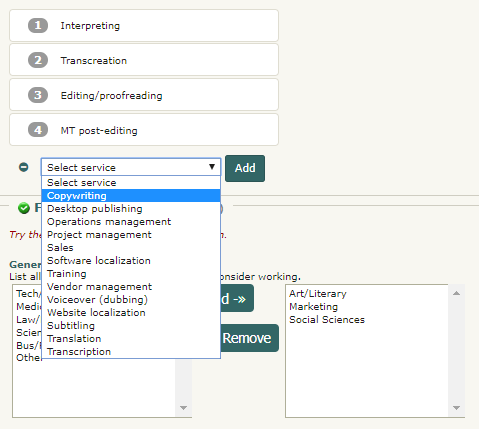
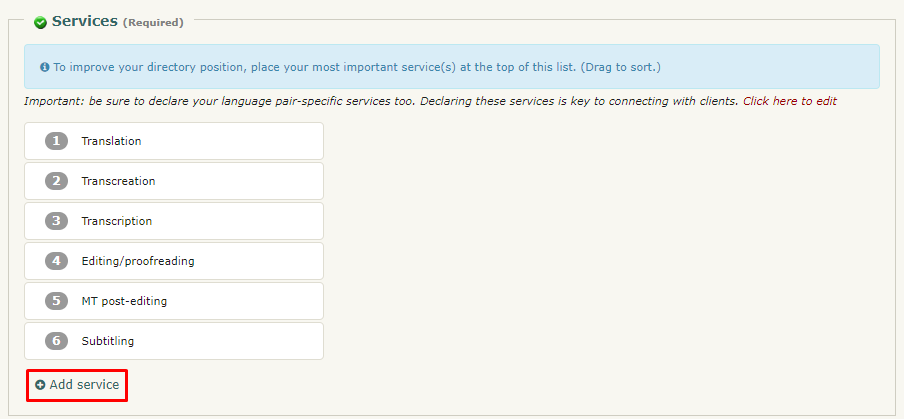
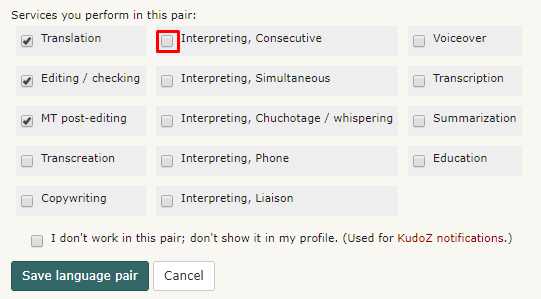
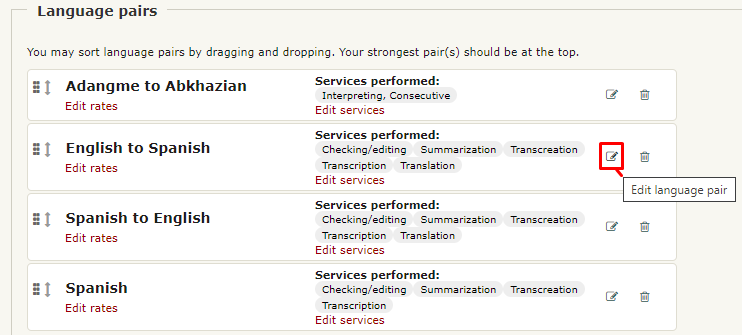
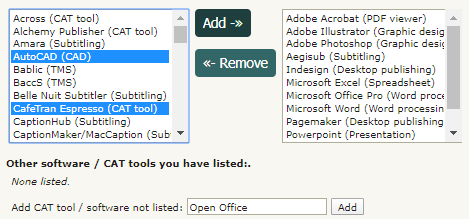
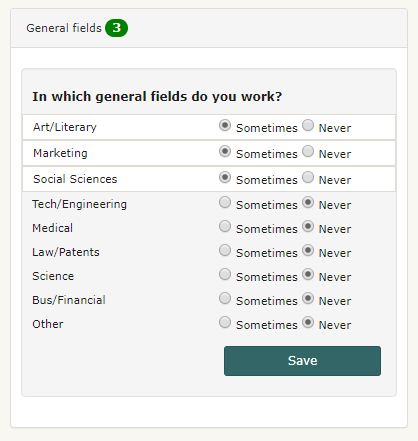
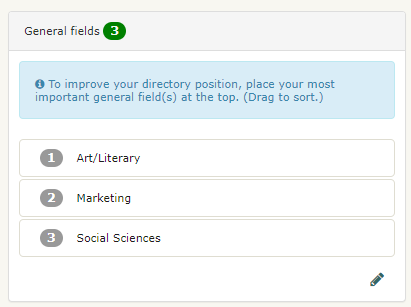
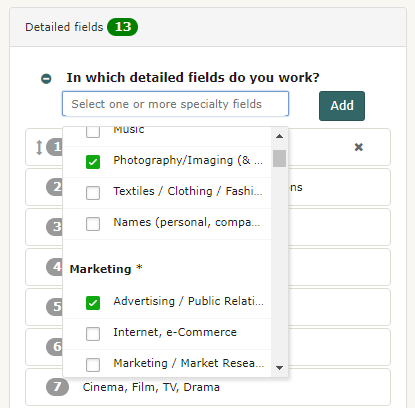
Once you have entered information for all these fields, simply click on Save and update profile at the bottom of the page to save your changes. Note that you can set visibility permissions for your contact information by using the options available in the Show to drop-down menu next to each field. You can also decide not to enter the information, in which case you need to indicate it so the area will be marked as complete. Click or check the I don't want to enter... option.  3.2 - I have edited my contact info but the quick profile does not show it. ProZ.com utilizes more than one web server. When you uploaded new information in your Profile updater, it can take between several minutes and a half hour for it to be copied to all the web servers. During this time, you may notice a blank or outdated data where you entered the information. Please give it some time before submitting a support request. 3.3 - Can I make my email address visible in the Contact section of my profile? No. This is designed as a means of security, to protect your address from spammers and scammers, and is why the profile email sending function (the little envelope at the top of your profile) is used. If you choose to publicly post your email address, you may do so for example in the About me section or CV of your profile. Please be aware of the risks of doing so. 3.4 - How do I add Skype to my profile page? You can add Skype to your profile by going to your Profile updater and editing your Contact information. 3.5 - How can I set my location in the map? You can enter your location on the map by visiting this page and following the steps described. You can also edit your location by clicking on the edit icon below the map image in your profile. 3.6 - How can hide or show the map in my profile? You can show or hide the map in your profile by clicking on the visibility toggle 3.7 - Can I control the online status shown in my profile? Yes. If you don't want your online status to show (via the P icon at the top of your profile page), you can choose to hide it from this page. You can also add, delete or hide other instant messaging icons in your profile. Remember that showing your online status can be a useful way of letting people you work with know you are available via profile mail or ProZ.com Instant Messaging. 3.8 - ProZ.com instant messenger online status is not showing in my profile. Why? If the small P icon that shows your online status and serves as an instant messenger tool is not showing in your profile, check your instant messenger settings to make sure you have chosen to show your online status (if so, the link option next to ProZ.com Online Status should read Hide). 3.9 - How do I add a Twitter feed to my profile page? You can add a Twitter feed to your profile in your Profile updater, under the Contact tab. 4 - Languages 4.1 - How do I report a new language pair in my profile? To report a new language pair in your profile go to the Languages section of your Profile updater. First, make sure that you have declared all of the languages you speak, selecting them from the drop-down menu at the top of the page. 4.2 - How do I change the order of language pairs reported in my profile? To change the order of language pairs reported in your profile, go to the Languages section of your Profile updater, then click and drag each pair to the position you would like them to appear in your profile and click on Save and update profile at the bottom of the page to save the changes applied. 4.3 - How do I enter languages of interest? To enter a language of interest in your profile, just enter a new language pair from the Languages section of your Profile updater as you would normally do (following the steps described here). Before saving the pair, check I don't work in this pair; don't show it in my profile. Select this last option and finally click on Save language pair to save the changes applied. 4.4 - How do I report my native language(s)? You can report your native language or languages (with a maximum of two) from the Languages section of your Profile updater. In the Native language field, select your native language(s) from the menu available to the left and click on Add. Then, simply click on Save and update profile at the bottom of the page to save your changes. 4.5 - Can I report my language variants? 5.1 - How can I report my language variants? To report your language variants, head to the Languages tab of your Profile updater. When you hover over each language, you'll see a pencil-shaped button that will allow you to add variants. Reporting your variants is optional and will not affect your profile completeness. 5.2 - My language variant is not listed. If your language variant is not listed, please submit a support request detailing the variant that you want to add. 5.3 - Can job posters filter by this information? No, at this time it is not possible to use language variant filters in the job posting form. However, it is now possible to filter directory searches by language variant, from ProZ Find™. 5.4 - I am proficient in multiple variants of my language, which should I add? You should add those variants that you are most comfortable with. In many cases these will be the ones that you have worked with the longest, but may in fact be those that you currently use on a daily basis. You can indicate your level of familiarity from a drop down menu when adding or editing your language variants. 4.6 - ProZ.com Native Language Verification drive 6.1 - I need to declare a second native language, or I've made a mistake in entering my native language(s). Please submit a support request for assistance, indicating your reason to reset your native languages. 6.2 - What is the ProZ.com Native Speaker credential? The Native Speaker credential is a mark that signifies that a ProZ.com member is a native speaker of a given language. Mousing over the mark or clicking on it will show additional information. 6.3 - What do the different colored icons mean? A golden ProZ.com Native Speaker icon 6.4 - I'm a native speaker of a single language. How do I get it verified? ProZ.com members with one reported native language are asked to simply declare that language. If you have already reported your language before upgrading to Professional membership, submit a support request indicating that you wish to reset your native language for verification. 6.5 - How do I get the credential in more than one language? As you may be able to see when you enter the Languages tab on your Profile updater, you have the option to Request verification to the right. 6.6 - How many native languages can be reported? At the time being, only two native languages can be reported. There are no immediate plans to add a third language. 6.7 - What definition of native speaker is used? Rather than imposing a definition of native, the NLV system leaves the definition up to participants. An applicant's speech will be deemed native if several other ProZ.com native speakers find it to be native, according to their own definitions. When an application for Native Language Verification is rejected, the applicant is able to see the reviewer's comments, explaining why they did or did not find the speech to sound native. 6.8 - Does the ProZ.com Native Speaker Verification tell whether or not someone is a good translator? Absolutely not. Native language is only one factor that a client may consider when screening a translator or interpreter. It is usually not the most important factor. 6.9 - How much does it cost to apply for ProZ.com Native Speaker Verification? There is no fee for submitting an application to the ProZ.com Native Speaker Verification system. This verification is community-driven, and any user who reviews three or more applications can apply. Plus subscribers don't need to review applications before applying themselves. 6.10 - My Native Language Verification application is pending. How long will it take for it to be reviewed? The Native Language Verification system is community-driven. This means that the reviews depend on the community's will and availability to listen to submissions and offer their feedback. For particularly small language communities, this may take a relatively long time. 5 - Services 5.1 - How can I report the services I offer? To report the services you offer, simply go the Services & offerings section of your Profile updater and select the services you offer from the list to the left and click on Add. Once you have added your services to the list to the right, click on Save and update profile at the bottom of the page to save your services. As with all sections of your profile, you can drag-and-drop your reported services to list them in order of relevance. 5.2 - How do I add a monolingual service? Some users may choose to add monolingual services in their profiles, including checking/editing, voiceover, education, transcription, etc. To do this, simply go to the Languages section of your Profile updater, click on Add new pair and choose the same language in both the Source language and Target language drop-down menus. 5.3 - Why is it important to report services offered? Your profile is your public face at ProZ.com. It serves as your business card and directory listing, and is the first impression of you that colleagues and potential clients will have when they find you at ProZ.com. In addition to finding your profile via ProZ.com, there is also a good chance that potential clients will find your ProZ.com profile when seeking language professionals using search engines such as Google or Yahoo! —provided that you optimize your profile accordingly. So, by reporting in your profile the services you offer, you increase the chances of showing as part of search results when potential clients search by keyword (eg. translation, interpreting, training, etc.). 5.4 - Why am I not listed as an interpreter/proofreader/copywriter? Please check that you have added all your services to the Services & offerings section of your Profile updater. To improve your directory position, place your most important service(s) at the top of this list. Make sure to click on Save and update profile once you are done. 5.5 - How can I report software / CAT tools I use in my profile? You can report any software or CAT tool you use in the Services & offerings section of your Profile updater. Just select a software from the list available to the left in the Software / CAT tools section and click on Add. You can select multiple items by using the keys CTRL and shift. Once you have added all the software tools you want to report to the list on the right, just click on Save and update profile at the bottom of the page. If the CAT tool or software you want to list is not provided, use the Add CAT tool / software not listed field to report such tools. 6 - Fields of expertise 6.1 - How can I add and edit my fields of expertise in my profile? To report fields in your profile, go to the Services & offerings section of your Profile updater. To report General fields simply select a field from the list to the left and click on Sometimes to have the chosen field(s) added to the list of general fields that you work in. Once you have checked all the general fields you want to report, just click on Save. To edit your fields, click on the pencil-shaped button at the bottom right corner, and remove them by marking Never. 6.2 - Can I change the order of fields reported in my profile? Yes, you can change the order of specialty, working and interest fields you have reported in your profile from the Services & offerings section of your Profile updater. Just click on each field and drag it to the position you would like it to occupy in the list of fields. Remember to click on Save order at the bottom of the list after moving each field. 6.3 - Je, nyanja za utaalamu hubainishwaje kwenye ProZ.com? Miundo kadhaa ya uanishaji hutumika kote kwenye ProZ.com kwa madhumuni ya kuainisha machapisho ya kazi, maswali yanayohusu misamiati, nyanja binafsi ya utaalamu, faharasa na zaidi. Kuna miundo mikuu miwili: uainishaji wa jumla wa ProZ.com (upo wa aina 9) na uainishaji wa kina wa ProZ.com (upo zaidi ya aina 100). 6.4 - What are the detailed categories of expertise? The detailed categories are a subject classification system developed based on the keywords used in a free entry box to describe the fields of KudoZ questions asked.
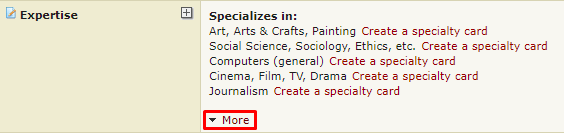
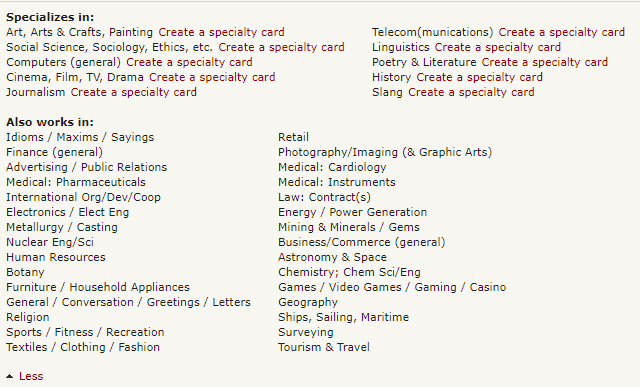
All users are advised to enter detailed fields of expertise (working and interest) in their profile pages, in the expertise section. Also, whenever possible, a detailed category should be entered at the time a new KudoZ question is posted. Furthermore, users with a sufficient number of KudoZ points can be given the right to classify questions which the asker has not classified with detailed categories, and are encouraged to do so. These users are called KudoZ editors 6.5 - Je, nyanja zilizotumika zilibainishwaje? Seti za jumla na za kina za "fani" ziliundwa kulingana na uchanganuzi wa mifumo ya utumiaji wa tovuti. Uainishaji wa jumla ni uainishaji wa juu unaotumika kazi zilipowekwa wakati wa ukaguzi. Uainishaji wa kina ni uanishaji wa juu wa kina unaotumika misamiati ya KudoZ ilipochapishwa wakati wa ukaguzi. 6.6 - Nyanja hizi zinaonekana hazina mantiki. The taxonomy of fields used at ProZ.com reflects market characteristics. No attempt has been made to make it stand up to rigorous academic analysis. 6.7 - Why is my specialty not available? If you can't find your specialty, please submit a support request indicating which one you would liked added and then we will add it to our task list for development. Note that it is unlikely that a category would be added based upon a single request. But requests for additional categories, coupled with ongoing review of site usage patterns, will determine future changes to the category structure. 6.8 - Why are some categories shown twice —like cars and automotive? Some specialty fields or categories are repeated through the drop-down menus, because a significant number of people entered those fields with multiple names during the time that ProZ.com used to collect and review that information. In order to prevent separation of similar data, these identical or related categories are tied together in the database. So it does not matter if you choose automotive or cars; both will be treated and shown in exactly the same way thereafter. 6.9 - How many general, specialty, and working fields can I enter in my profile from the Fields of expertise page? You are allowed to enter up to 10 specialties, 30 working fields, and up to 8 of the 9 general fields available. Only 5 or less from the general field will appear on your profile page. However all your specialty fields will appear on your profile page, and your working fields will appear collapsed, available under a More button. 6.10 - What is the difference between Specialty fields and Working fields? Specialty fields are also working fields, but they are fields in which you specialize or do your best work. If your top area is, say, medicine, you should make sure it is listed as your top specialty, and you should consider accompanying this with sample translations related to medicine in your profile. Outsourcers can look for language professionals by specialty fields, so this can be important in meeting potential clients. 6.11 - Does the order of my specialty fields affect my directory positioning? The ten fields that you have reported first will be considered your specialty fields. The following thirty fields will be considered your working fields, and the remaining fields will be considered interest fields. In directory searches for specialists in a field, those who have reported that field in their top-ten will have preferential positioning over those who marked it as working. Those who placed it between the 11th and 40th spots will in turn be given a priority placement over the users who reported it as interest. 6.12 - Why can't I enter more than 10 specialty fields (and 30 working fields)? It is possible to select 10 specialty fields and 30 working fields, which means you may appear in the directory for a total of 40 fields. While we recognize that there are translators who are able to work in more fields, users are asked to select their best 10 (and after that, their next-best 30). ProZ.com is based on the idea of specialized translation and this system is designed around the idea that one can only be a specialist in so many fields at once. 6.13 - Why aren't my detailed fields of expertise displayed on my profile page? Only the specialization fields that you select as specialty and working will appear on your profile page —that is, the first 40 fields you selected. 7 - Credentials 7.1 - What is a credential? At ProZ.com, a credential is a degree, certification or diploma issued by an educational or certifying institution upon completion of a translation or language course, or upon passing a test or examination process.
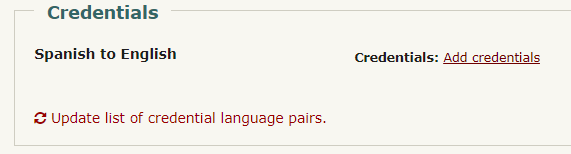
Language credentials are those that attest to your proficiency in a single language. Reference letters written by past clients, tutors, teachers or colleagues, as well as contracts or proof of past work will not be considered credentials. 7.2 - Why is it important to report my credentials? It is possible for members to report having earned such credentials via their profile pages. Correspondingly, job posters are able to restrict job posting to those members who have reported credentials. It's also possible to restrict job postings to those with verified credentials. Also, directory searches can be limited to those with reported or verified credentials. You can report your credentials here and here you can check how to get them verified. 7.3 - How do I report my credentials? To report a credential, first go to your Profile updater and click on Add credentials next to the corresponding language pair. A window will pop up allowing you to report any professional credentials, certifications or accreditations you have earned from recognized authorities. 7.4 - Do I have to submit a copy of my credentials for verification? The credential filter used in jobs is based only on whether you have declared your credentials. Verifying your credentials benefits your profile and you, and is an added assurance to potential clients that you are a qualified professional. 7.5 - How do I get a credential verified? ProZ.com verifies language-related credentials reported by ProZ.com members. At this time the following credentials can be verified:
First, report your credentials in your Profile updater by clicking on Add credential next to the corresponding language pair. A window will pop up allowing you to report any professional credentials, certifications or accreditation you have earned from recognized authorities. Second, submit a support request with your credential(s) attached. The file may be in PDF or image format, and weigh up to 2MB. If you are submitting photographs or scans of the document, be sure that they are clearly legible. If your credentials are not in English, Spanish, Russian or Ukrainian, be sure to attach a translation into one of these languages as well —note that the translation does not need to be provided by a third party, you can translate it yourself. 7.6 - Does ProZ.com verify memberships in organizations or associations? As they are in general temporary, and subject to change, ProZ.com is unable to verify memberships in organizations or associations. These should be reported under Memberships instead, by going to the Memberships tab of your Profile settings. 7.7 - Does ProZ.com verify reference letters from colleagues or employers? No. Only accreditations issued by authorities and language-related academic credentials or degrees issued by accredited educational institutions can be verified. 7.8 - I took a language course or exam. Can I declare it as a credential? Yes, you can declare your language courses and exams, but these will be monolingual credentials. This means that they prove your proficiency in a single language, not your ability to translate between a specific combination of languages. 8 - Continuing professional development (CPD) tracker You can report and track all of your continuing professional development (CPD) activity through your ProZ.com account. You can keep it as a register just for yourself, or display it as another way to differentiate yourself to potential clients and collaborators. Paying ProZ.com members also have the ability to add certificates of completion where relevant, and request verification of CPD items from ProZ.com staff. 8.1 - What kinds of activities can be reported as continuing professional development (CPD)? At the moment, there are nine different categories of CPD available: 8.2 - Can I report paid projects I've worked on, or training classes I've given? In general, no. ProZ.com provides ways of reporting and using commercial work you have done to attract potential clients (for example, via the "What I am working on" and project history features), and if you provide paid training to others you can also leverage that through ProZ.com already. For the most part, to be considered CPD, the activity or work should be non-commercial. 8.3 - Can I report courses/credentials which are not purely linguistic in nature? Yes. Some activities which may not be purely related to translation or interpreting can still form part of your CPD. For example, if you specialize in technical translations, courses taken, events attended, or credentials achieved in that field are proof of your continuing professional development in the field in which you provide your linguistic services, and they can be reported and may be eligible for verification as well. 8.4 - Can I report language learning courses? For the moment, no. Since language learning courses generally represent efforts which are pre-commercial work in that language, they are not included for now. From a potential client standpoint, whether you are learning Japanese or not is of little interest, as opposed to showing you are already proficient enough to work commercially in Japanese and are improving your skills in, say, interpreting in Japanese, or in the Engineering field in that language. 8.5 - Can I report CPD activities I have done through other organizations or programs which offer or track CPD? Yes. The purpose of the ProZ.com CPD system is to allow you to track all of your continuing professional development in one place, and to use that as one more way of differentiating yourself to potential clients if you so choose (or however else you see fit). 8.6 - What kinds of mentorships can be reported? Any mentorship performed under a program which provides some kind of formalized structure to a mentor pairing can be reported. For verification purposes, you may need to submit proof of the pairing, duration of the mentorship, etc. 8.7 - What about memberships in organizations? Memberships can already be reported in your profile in the Memberships section, and are not part of your CPD. Some activities in which you engage as a member of different organizations, or in order to maintain membership there, may be considered as CPD, however. 8.8 - If I add a certificate of completion to a CPD entry, who can see that certificate? Your certificates of completion will be visible to you and to staff. They are used to verify entries, and for the moment are not displayed publicly (if that becomes an option later on, you will be able to choose if you display them). 8.9 - How will reporting and verifying CPD benefit me? If you do continuing professional development on at least an informal basis, it is nice to be able to keep track of it and have it in mind when lining up your professional objectives. 8.10 - How does the ProZ.com CPD point system work? When you add CPD activity, it is eligible for ProZ.com CPD points. Here is how it works:
Remember that CPD entry verification is available for paying ProZ.com members, so earning verified points will also be restricted to those who are members. Non-members will only see potential verified points. Points are assigned per activity like this:
8.11 - What are CPD points used for? At the moment, no plans have been made for the application of the CPD point system. Since entry verification (and therefore points) is limited to paying members, only a relatively small population of the ProZ.com community has access to it. For now, the plan is to let the CPD system work on its own and make improvements where needed. You can use the points earned from verified entries in the same way as you can use your CPD dashboard as a whole: as one more indicator to potential clients and collaborators that you are performing certain activities outside of your commercial work to improve and keep yourself up to date as a professional. 8.12 - I don't want to participate in the CPD feature at ProZ.com. No problem! Some people don't do CPD, either because they don't have the time, or because they don't have the desire to. By default, the link to your ProZ.com CPD display is hidden in your profile, and you can show or hide it at will (you can also choose to enter CPD activities but hide them so that they are only visible to you). The CPD feature is there for those who are doing CPD activity and wish to make use of it. 9 - Verified Identity Program 9.1 - Programu ya Utambulisho Thibitishwa ni nini (UTH)? Mwanachama wa ProZ.com, wasimamizi na wengine wanaojitolea wamejitahidi kufanya programu ya kuthibitisha utambulisho wa watumiaji wa tovuti ambao wangependelea. 9.2 - Ni vipi ninaweza kupata thibitisho utambulisho wa umbo langu? Uthibitishaji wa Ukaguzi ukurasa wa ombi hutoa njia mbili za kupata utambulisho wako kuhakikiwa. 9.3 - Muda wa programu ya VID ni upi? Itachukua miezi kadhaa kwa utambulisho wa asilimia kubwa ya jamii ya ProZ.com kuhakikiwa. Hadi wakati huo, hakuna faida maalum itakayopewa kwa watumiaji walio na utambulisho hakikiwa. 9.4 - Kwa nini utambulisho wangu hauthibitishwi tena? Kama utabadilisha jina lililopo, la kati, au la mwisho katika umbo lako baada ya utambulisho wako kuthibitishwa, uthibitisho wa utambulisho wako utakataliwa. Ili kuthibitishwa tena, utahitaji kuwasilisha ombi la msaada. 9.5 - Ninawezaje kupata VIDed kwenye powwow? Ili uweze kuthibitishiwa UTAMBULISHO wako kwenye powwow na mwanachama aliye na mamlaka ya kuthibiti utambulisho, lazima umuonyeshe mtu huyo picha yako ya utambulisho wakati utakutana naye ana kwa ana. 9.6 - Ninawezaje kupata mamlaka ya kuthibitisha utambulisho wa watumiaji wengine? Kama utambulisho wako mwenyewe tayari umethibitishwa, unaweza kuomba kwa mamlaka ya uthibitisho wa utambulisho wa watumiaji wengine kwa kuwasilisha ombi la msaada. 9.7 - Nimelipa kwa kutumia kadi karadha lakini bado UTAMBULISHO wangu haujahakikiwa. Wakati ombi la uthibitisho wa utambulisho linawasilishwa kwa kutumia chaguo la malipo, jina lililopo katika umbo lako chini ya "Jina halisi" lazima lilingane na lile lililopo kwenye akaunti yako ya kadi ya mkopo au Paypal. 9.8 - I received a message stating that my identity could not be verified. Why? If you have a "Translation company" account type, your identity will not be verified. Since the purpose of confirming members' IDs is to increase mutual trust across the site, in particular among users who don't know each other personally, only "Freelancer", "Freelancer and outsourcer" and "Student" accounts will be considered for ID verification. 10 - Rates 10.1 - Ni vipi ninaingiza ada zangu? Ada zinaingizwa kutoka kwenye ukurasa wa kisasishi umbo (bofya hapa). Kipengele 6, “Ada msingi”, ingiza ada zako, sarafu na mwonekano, na pia tekeleza taarifa hii kwenye lugha unganishi iloripotiwa kwenye umbo lako. Pindi ada msingi zimeingizwa, Hariri pia ada nafsi kwa kila lugha unganishi zako. 10.2 - Why is this important for me? Specifying your rate range makes it easier for clients to consider working with you. If you establish your rate range, you will not be bothered with notifications for jobs below your minimums. You will also be able to compare your rates with aggregated data from other pros working in your language pairs 10.3 - How do I enter rates for each language pair reported in my profile? You can enter language-specific rates by visiting your Profile updater and clicking on "Edit rates" next to each language pair in the Languages section. A window will pop-up allowing you to enter custom rates for each language pair. 10.4 - Can I report any surcharges, discounts or minimum charges aside from rates? Yes. You can report rate conditions through the Rate conditions page. 10.5 - How can I show / hide rates in my profile? You can set visibility permissions for your rates in the Financial section of your Profile updater. 10.6 - Ni zipi ada lengwa na za chini? Utahitajika kuingiza ada lengwa na za chini. 10.7 - Where can I include any sucharges, discounts, or minimum charges? You can list any adjustments you tend to make for special conditions when invoicing here. 10.8 - Kwa nini niingize ada? Manufaa ya kubainisha viwango vya ada: 10.9 - Ndipo ninaanza kuwa marijojo. Nitoze ada gani? Ada utakayotoza hutegemea mapato yako, mazao, likizo unazochukua na sababu nyingine. Tumia hiki kikotozi cha ada ili kufanya ukokotozi msingi. 10.10 - Ni lazima kuingiza ada? Huhitaji kuingiza taarifa ya ada. Aidha, hata kama utachagua kuingiza ada huhitaji kuionyesha kwa wengine. 10.11 - Ni ada zipi watu wanaulizia? Naweza kuona data jumla? Unaweza kuona ada zilizoingizwa katika jumuia ya ProZ.com kwenye ukurasa huu au kwa kutumia kiungo cha “Ona ada” kwenye menyu.
Hapa ni mfano wa matokeo ya ada:  10.12 - How is my maximum rate calculated? Your maximum rate is calculated automatically based on the minimum rate you entered in your profile. It is 2.5 times the minimum rate. Note that as with all rates you enter, a lower or higher rate can always be negotiated after you are chosen to complete an assignment. 10.13 - Nimeingiza ada zangu lakini bado ninapokea ofa za kazi chini ya kiwango changu. Kwa nini hivi? Si kazi zote husawiana na mfumo wa "[X] kila [neno|saa|jumla] katika [sarafu]". Kazi nyingine hubainisha mistari badala ya maneno, zinazoendelea au za nyumbani mara nyingi zina mahitaji tofauti ya bei, na kadhalika. Ili kusawazisha hali hii watoaji kazi wamepewa chaguo la kuingiza bei ya kazi kwa mfumo wa kiwango wastani, au kwa kutumia fomu ya kisanduku cha matini kwa kuingiza bei. Kazi ambazo hutumia aina hii ya fomu haiangaliwi kwa ada, hata kama iko chini ya viwango vilivyowekwa. 10.14 - Kwa nini ProZ.com isiweke kiwango cha ada ya tafsiri? Angalia http://www.proz.com/faq/jobs#jobs_minimum_rate 11 - WWA (Willingness to Work Again) or translator feedback 11.1 - MKT ni nini? Mfumo wa MKT ni kipengele cha ProZ.com ambacho hutoa Watafsiri, wakalimani na watoaji huduma wengine kwa njia ya kuomba, kukusanya na kuonyesha majibu katika maumbo yao" nia ya kufanya kazi tena" ("MKT") kutoka kwa wateja na wafanyikazi wenzake. 11.2 - Ingizo la MKT linajumuisha nini? Ingizo lina sehemu tatu: 11.3 - Ni nini umuhimu wa maingizo ya MKT? 11.4 - Ni masharti gani ambayo yanaweza kuwa kwenye ingizo la MKT (linaweza kuombwa kutoka / kufanywa na) mtoaji kazi? Mtoaji kazi lazima atoe kazi zilizogharimiwa kwa mtoaji huduma kwa angalau kabla ya tukio moja. Maingizo ya MKT hayaruhusiwi kwa msingi wa tafsiri ya jaribio au mwingiliano mwingine wowote wa awali. 11.5 - Can I request feedback from different project managers I have worked with in the same company? Yes. 11.6 - How can I help identify the maker of a feedback entry? When possible, a translator feedback entry includes a link to a ProZ.com profile or Blue Board record that represents the person who gave the feedback. This information can be helpful to others when determining how much to rely on a particular feedback entry. 11.7 - Ninahitaji umbo la PrpZ.com ili kutoa ingizo la MKT? Ndiyo, kwa sasa ni wale tu ambao wamesajiliwa na ProZ.com wanaweza kufanya maingizo ya MKT. Uamuzi huu ulizingatia majibu tuliyopata, kwa kuzingatia uwezekano wa dhuluma, kwamba wanachama walihisi vizuri zaidi na usajili uliohitajika. 11.8 - "Ndiyo" ndilo tu jibu linawezekana kwa "nia ya kufanya kazi tena" swali linaloulizwa la watoaji kazi? Kwa wakati huu iliamuliwa kuuliza watumiaji wa tovuti kufanya maingizo tu kwa wale watafsiri na wakalimani ambao wangeweza kufanya kazi tena. (Kwa maneno mengine, haiwezekani kufanya maingizo ya "hapana" na "labda" katika kujibu swali, "Je, unaweza kufanya kazi na mtu huyu tena?") Mbinu hii ni ni nia ya kushughulikia mapungufu ambayo baadhi ya wanachama wameonyesha kuhusu i uwezekano wa dhuluma, ambayo inapaswa kuruhusu mwelekeo kuwekwa kwenye nafasi muhimu ya kipengele, kama masoko. 11.9 - Inafurahisha – ningependa kuonyesha maingizo “moyo wa kufanya tena” kutoka kwa wateja kwenye umbo langu. Nitafanyaje hilo? Kuomba jibu la MKT kutoka kwa mtoaji kazi ambaye mmefanya naye, enda kwenye “MKT Yangu” kutoka kwenye kichupo cha “ProZ.com Yangu” kwenye kurasa maskani na teua 11.10 - How can I send a translator feedback requests in languages other than English? You can completely customize the message that is sent when requesting translator feedback. However, a small box will appear at the bottom of the message, with special links for giving feedback. The content of this box is only available in English. 11.11 - How can I reply to feedback entries I received? You can reply to WWA feedback entries you received from the My WWA entries/requests page. 11.12 - Nawezaje kutoa ingizo chanya "nia ya kufanya kazi tena" kwa niaba ya mtumiaji wa tovuti ambayo alinifanyia kazi? Ili kutoa maoni ya MKT kwa mtoa huduma ambaye umefanya kazi naye, nenda kwenye "WWA yangu" kutoka katika kichupo cha " ProZ.com yangu" kwenye ukurasa nyumbani na kuchagua "toa viingilio vya MKT ". Ikiwa mtoaji huduma yeyote amefanya ombi ya majibu ya WWA kutoka kwako, utaona jina la mtoaji huduma na vitendo vitatu vinavyowezekana: 11.13 - Machaguo yangu ni yapi kuhusiana na mwonekano wa maingizo yangu ya MKT? Maelezo ya MKT yameonyeshwa upande wa juu kulia kwenye umbo lako. Kuna chaguzi tatu kwa mwonekano wa maelezo haya: 11.14 - Can I display client feedback and testimonials elsewhere in my profile? Yes. The Project history provides the option to gather and display client and collaborator feedback on specific projects. Some translators also choose to select and reflect some client feedback in other sections of their profile, such as the About me section. Note that displayed feedback not collected through a system like the WWA system may be subject to requests for verification by site staff, in the interest of transparency and of protecting the integrity of the feedback system. 11.15 - Je, Kipengele hiki kina pia lengo la kufaidisha mtoaji kazi? Ndiyo. Watoaji kazi ambao wanachagua kuzingatia data ya MKT wanaweza kupata kwamba wao wako na uwezo wa kuhitimisha watafsiri na wakalimani kwa ufanisi zaidi. 11.16 - MKT itawezaje kufaidi kote watoaji huduma (yaani watafsiri na wakalimani) na watoaji kazi kwa wakati mmoja? Uhusiano wa mtafsiri/mtoaji kazi ni mojawapo ya ushirika si uadui. Iwapo mfumo wa MKT utaleta mviringo haraka, majaribio machache ya tafsiri, nk.,hii itakuwa bora kwa watoaji kazi sawa na wahudumu. 11.17 - Na kuhusu ufaragha? Siwezi/ ama sitatoa jina la mteja wangu. Kwa sasa kila ingizo ujumuisha jina la mteja (hakuna njia ya kupokea maingizo yasiyo dhahiri). 11.18 - Sina makubaliano ya faraghani haswa, lakini sitaki wengine wajue ni nani ninafanyia. Ninawezaje kukinga wateja wangu ili wasijulikane? Huhitaji kufanya chochote. Kwachaguo la msingi maingizo ya MKT hayataonekana kwenye umbo lako. Unaweza kuchagua kuingia au kutoka kuonyesha maingizo yako ya MKT kwa hiari yako. Kile unachoweza kuthibiti ni yawepo au yasiwe maingizo *yote* yaliyopokelewa yataonyeshwa. Si rahisi kuhiari kutoka kuonyesha maingizo ya MKT binafsi. 11.19 - Nani vipikuhusiana na tamanio la wanachama kutaka kuzuia wengine kutoka kuweka maingizo ya MKT yasohitajika? Ni rahisi kujitoa kutoka kwenye mwungano wa BB/MKT. 11.20 - Iwapo nitajitoa wateja watafikiria sitaki majibu yaonyeshwe kwa sababu labda mimi ni mtafsiri pyongo. Itakuwa sawa kuandika swala hilo kwenye umbo langu kuelezea kwamba nilichagua kutotumia kisifa hiki ili kukinga wateja wangu au kitu kama hicho? Bila shaka unaruhusiwa kuongeza kauli kama hiyo 11.21 - Kuna mhudumu na/au msimamizi (mwa)angalizi Maingizo ya MKT yanachunguzwa na wahudumu wa wavuti kabla ya kuonekana, si kwa lengo la kuhakikisha umakinikaji wao lakini kwa kuthibitisha kuwa kisifa kinatumika kwa kusudio lake. Wahudumu pia wapo kupitia kwenye mfumo saidizi, kwa kuhakiki na kuchunguza maingizoyenye shaka na uwezekano wa utepetevu kwa ombi. 11.22 - Kisifa cha MKT ni kwa wanachama tu? Awali, vipengele vyote vya mfumo mpya wa ujibishaji utapatikana kwa watumiaji wote wa tovuti, pasi na kuzingatia hali yao ya uanachama. Siku za baadaye kuna uwezekano kuwekwa vizingiti kwa utumiaji kwa waso wanachama, kama vile kizibo kwa idadi ya maingizo yawezayo kufanywa au kuonyeshwa na wao. 11.23 - Outsourcer says no invitation was received. What can I do? If an outsourcer to whom you sent a translator feedback request says no request was received, check that the email address used is correct. Also, you can suggest the outsourcer to check the spam folder of their email inbox and send a reminder message as described here. 11.24 - Hiki kipengele cha MKT kimetiwa alama isokamili kwenye kisasishi cha umbo hata kama nimepokea ingizo. Ni kwanini? Kisasishi cha haraka cha umbo kitaonyesha kipengele cha MKT (ambacho ndicho kipengele `pendekezwa` kuliko kinachohitajika) kuwa kamilifu iwapo tu ingizo limepokelewa kutoka kwa mtoaji kazi ambaye amebainisha utambulisho ama yenyewe imepokea maingizo ya Blue Board kutoka kwa mtumiajiwa tovuti nyingine. Hitaji hili ni kusudi la kukwamiza utumiaji wa mfumo wa MKT. 11.25 - Ninawezaje kupata alama ya kamilika ya kijani ya MKT katika umbo langu? Ili kupata alama ya “kamilika” katika eneo la umbo lako la MKT unahitaji angalau ingizo moja kutoka kwa umbo ambalo linatimiza mojawapo ya masharti yafuatayo: 11.26 - What does the message received line mean next to the clients' names that I requested WWAs from? The message received line that appears in your WWA request entry form next to the client that you requested a WWA entry from is just an email confirmation message to inform you that the email you sent them was received in their inbox. 11.27 - Kwa bahati mbaya nilifanya ingizo la maoni ya MKT kwa mtafsiri mbaya. Nawezaje kufuta ingizo hili? Tafadhali wasilisha tikiti auniwa ikionyesha ingizo hilo la makosa. 11.28 - I received translator feedback from an outsourcer I have never worked for. What should I do? If you are sure that the entry you received has been posted by an outsourcer you never worked for, please submit a support request and specify the entry. 11.29 - How can I edit a feedback comment/reply? In special cases, staff will edit comments accompanying translator feedback entries or replies to entries at the poster's request. 11.30 - The outsourcer I am looking for does not show as part of search results. What can I do? If you are looking for a specific outsourcer and they do not show as part of search results, make sure you are looking for the outsourcer's profile name (the name shown in their profile). 11.31 - Where can I see translator feedback statistics? To view feedback statistics, go to the translator feedback stats page. 11.32 - Can a user receive translator feedback from family members or close associates? Translator feedback should not provided to family members or close associates, in order to maintain a certain level of transparency in the feedback system. 11.33 - What are WWA ratings? WWA ratings enable outsourcers to provide more detailed feedback to their service providers. 11.34 - Will WWA ratings replace WWA feedback? No. WWA feedback is separate from WWA ratings. Profile owners will continue to have the same rights to show/hide/solicit WWA feedback they have always had. 11.35 - What are service provider options regarding the visibility of their WWA ratings? There are two options for visibility of service provider WWA ratings: 11.36 - What about my WWA feedback entries? Your WWA feedback and settings will not change. You will keep all of your WWA feedback and you may choose to show or hide all WWA feedback, independent of showing or hiding your WWA ratings. 11.37 - What are outsourcers options regarding the visibility of their WWA ratings? There are two options for visibility of individual outsourcer WWA ratings: 11.38 - Are WWA ratings required to participate in any ProZ.com services or features? Yes. In order to join ProZ.com pools, service providers will be required to show their WWA ratings. 11.39 - What are the conditions under which WWA ratings can be made by outsourcers? Only logged in outsourcers (LSP/Agencies, end clients or account type (outsourcer & freelancer) can leave WWA ratings. 11.40 - What is a verifiable project? A verifiable project is one where the outsourcer, if requested, can provide written documentation that a project or order has been accepted by the service provider. 11.41 - Can I reply to WWA ratings I received? Yes. Service providers will be able to reply/comment to WWA ratings they receive. 11.42 - Will WWA ratings have more detailed category ratings (i.e. communication skills, on time delivery, etc.)? Yes, it is planned that detailed category ratings will be released in the future. 11.43 - Will an outsourcer be able to edit their WWA ratings? Outsourcers that keep their WWA ratings private will be able to edit them at any time. 11.44 - Will WWA ratings have an effect on my directory position or rank? Not at this time. 11.45 - How can I request or solicit WWA Ratings? Service providers can request WWA ratings in the same manner in which service providers can request WWA from their clients. 11.46 - What are the rules for submitting WWA ratings? Certain conditions must be met before WWA ratings can be made:
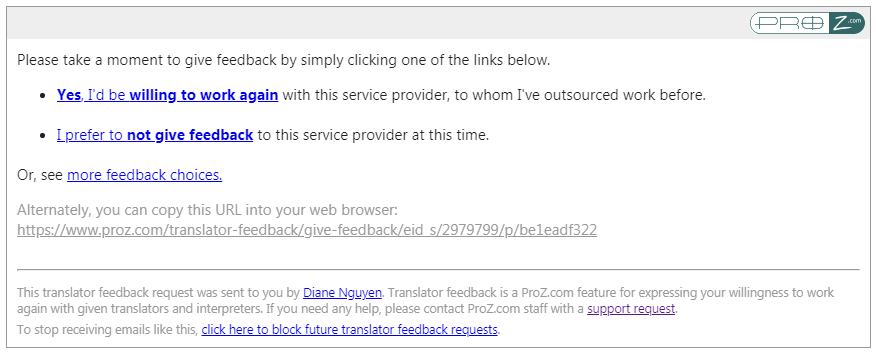
11.47 - Will banned outsources or those with open non-payment reports be permitted to leave WWA ratings? No. 11.48 - Will outsourcers be able to leave multiple WWA ratings? Outsourcers may leave one WWA rating per verifiable project. 11.49 - What if I disagree with a WWA Rating I have received? If a service provider feels a WWA rating violates the WWA ratings rules, they can open a support request. ProZ.com reserves the right to review WWA ratings on a case by case basis, and to remove any WWA rating or comment which may not conform to ProZ.com site rules & policies. 11.50 - I got a request for WWA feedback from a service provider via email, how do I provide it? At the end of the message sent by the service provider who worked with you, you will find a box with different options: The first option will allow you to provide feedback indicating that you are willing to work again with this service provider. The second option will provide you with the option to decline giving this service provider feedback at this time. And the option to see more feedback choices will allow you to choose if you want to rate this service provider. This option is only available to logged-in ProZ.com users, and if you are not logged in or do not have an account, the page will prompt you to log in or register (if you do not wish to create an account, you can still leave the translator WWA feedback without a rating). Regardless of the option chosen, the next screen will see the information below, with the selected option highlighted: In the first field you'll find your contact information as entered by the service provider. If you wish to change any of these contact details, you can do so here. In the second field, you'll find the following WWA feedback/rating options:
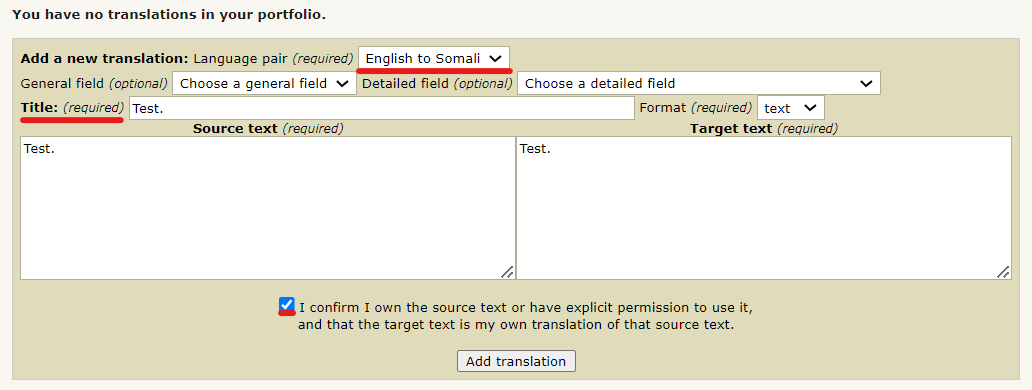
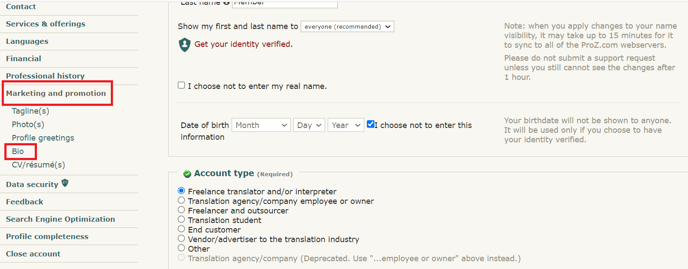
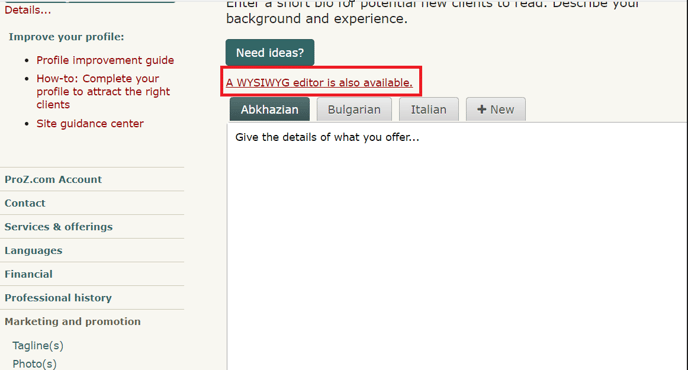
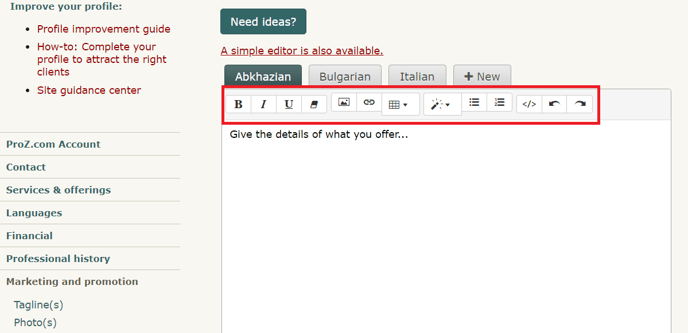
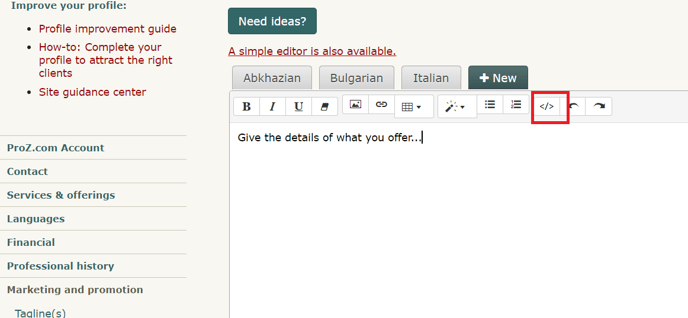
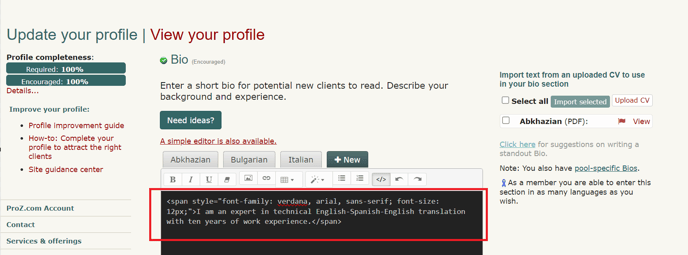
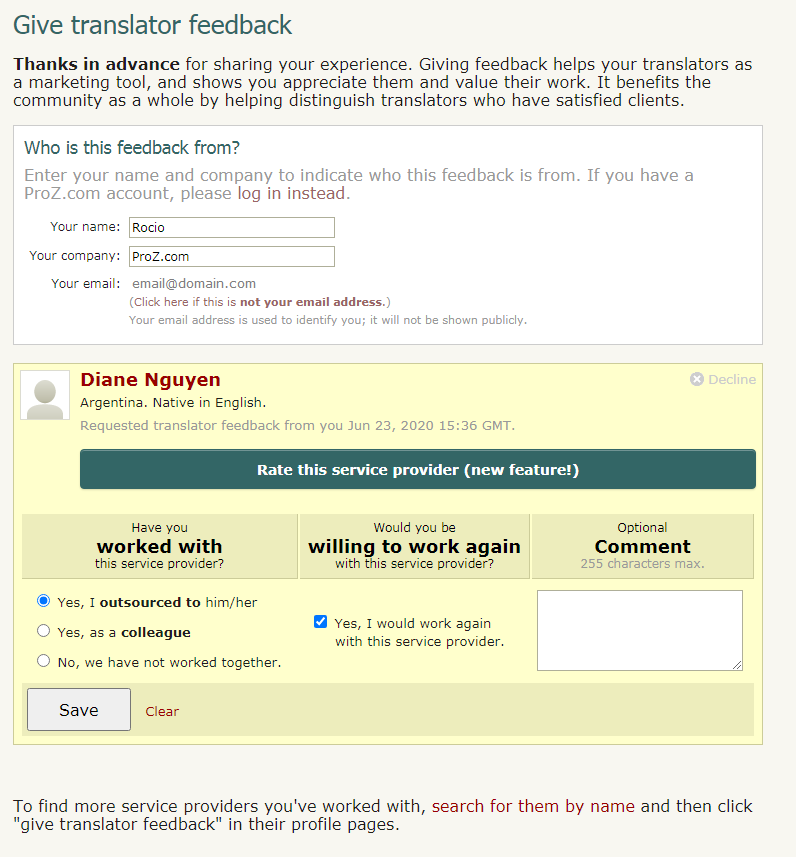 12 - Portfolio: my sample translations 12.1 - How do I add sample translations to my Portfolio? Samples are really important, not just for profile completeness, but in order to show the quality of your work. 12.2 - How can I change the order of sample translations in my portfolio? The order of sample translations reported in profiles can be changed by selecting each sample in the list of samples in the Professional history section of the Profile updater and dragging them to the desired position, saving and updating changes after each movement by clicking on Save and update profile at the bottom of the page. 12.3 - Can I toggle the visibility of the samples in my portfolio? No. You can either choose to enter samples which will be publicly visible to visitors to your profile or choose not to enter these samples. For the latter option you can tick the box next to I choose not to enter any sample translations at this time in the Portfolio/Sample Translations in the Professional history section of your Profile updater. 12.4 - How can I respect confidentiality agreements with clients while showing sample translations in my portfolio? If a translation you have done is subject to a confidentiality agreement, avoid adding this translation to your portfolio and try adding a sample text taken from the web or elsewhere instead. Remember that sample texts do not need to be long, but that two or three paragraphs should be enough. 13 - Project History 13.1 - What is the ProZ.com Project History? The ProZ.com Project History system provides translators and interpreters with a convenient means of keeping a record of projects done, by language, field and other characteristics. Use it to organize your records, keep track of payments, etc. Additionally, the Project History system allows users to display general details of select projects in their profile pages, in order to communicate to potential clients and collaborators the nature of their past experience. With the clients' permission, client names and feedback can also be shown. 13.2 - Who can use the Project History system? All site users are allowed full use of the Project History functionality. 13.3 - How do I add a new project to my project history? To add a new project to your project history visit your Project history page. Select the Add a new project option from the menu to the left and you will be re-directed to the project form. Complete this form with all required information and click on Submit. 13.4 - What type of projects can be listed? Use the Project History(SM) system to keep track of translation, interpreting, editing, proofreading projects that you have completed personally. 13.5 - Can I list projects obtained from clients outside of ProZ.com? Yes, you can list any project, regardless of how you met the client, and regardless of whether or not the client is registered with ProZ.com. 13.6 - I/my company managed a project. Should I list that? No, you should not list projects which you or your company has managed. The Project History system is intended for translators, interpreters, editors and proofreaders to keep track of work they have completed personally. 13.7 - Is my Project History(SM) private? Yes —by default, only you see the information that you enter into your project history. 13.8 - I see other users' project histories. Why is that? It is possible to display general details of select projects from your project history, if you wish to. An overview of projects you have opted to show will appear in your profile page, under a tab marked "Project History". Displaying projects representative of your areas of expertise may be an effective means of marketing your services. 13.9 - I notice that client names are sometimes shown in other users' project histories. What determines whether or not a clients' name is shown? The client's name is only shown if both parties agree to display it publicly. 13.10 - What is outsourcer corroboration? When you enter a project, you are given the option of requesting outsourcer corroboration. If you request this, the outsourcer will have the option of verifying that the project took place and that your description was accurate. 13.11 - How does outsourcer feedback work? Another option available when entering a project is to request outsourcer feedback. When this is requested, the outsourcer is given an opportunity to describe his/her experience with you as positive, neutral or negative. A one-line comment may also be entered. 13.12 - I sent a collaborator confirmation request and it seems it did not go through. What can I do? If you sent a collaborator confirmation request and your collaborator did not receive the email message requesting confirmation, try re-sending the request. To do so, click on Edit next to the project in the Project history page and enter your collaborator ID at the bottom of the project form. Re-send the invitation by clicking on Submit. 13.13 - How does my project history affect how I am shown in the directory? When a client searches for a translator in a specific language and field and your name is found, the number of *corroborated* projects you have in that field will be shown. Your position in the directory is not affected. 13.14 - How can making selections from my project history visible help me to meet new clients? Clients may be reassured to know that you have experience in the language pair and field in which they require service. By making select projects visible in your profile page, you communicate to potential clients the nature of your experience, and optionally, your track record in satisfying clients. 13.15 - Can I keep track of, or display, who I have worked together with on my projects? Yes. If your colleague(s) are registered with ProZ.com (members or otherwise), you can associate their names with the project, for organizational purposes. You can also request corroboration of project details, and one line of feedback, and this will be displayed to others if you choose to make the project visible in your profile page. 13.16 - Can I hide my projects if I get negative feedback from the outsourcer? No. You lose the ability to edit, delete or hide a project when you submit it to the outsourcer for feedback. You regain the ability to delete or hide a project if the outsourcer gives you positive feedback. 13.17 - My client gave me negative/neutral feedback, is there any way it can be removed/changed? ProZ.com will not get involved in any conflicts between translators and their clients involving Project History. 13.18 - Why I can not delete a project in my Project History(SM) list? It is not possible to delete a project that has received neutral or negative feedback from an outsourcer. It is also not possible to delete a project that is awaiting corroboration. 13.19 - My client never received a notification to review my project, can they still review it somehow? If your client does not receive a notification to review a project you submitted to them, they can still leave feedback. To do so, they can log into their ProZ.com account that is associated with their Blue Board record, and leave you feedback in their Outsourcer Control Center located here. 13.20 - Should I include only big projects? No. Big projects are relevant, but describing smaller projects in narrowly defined fields may help show your expertise. 13.21 - How can I enter projects if all my work is confidential? You only need to enter as much information as you feel comfortable with. In most cases, a general description should be enough to convey the desired information without compromising confidentiality. You can find below a sample Project history with two projects described in general terms. No client or brand names are mentioned, no specific details provided, and yet a potential client can get the idea of the kind of projects you can deal with. 13.22 - I don't want to ask my client for corroboration, what can I do? Again, the tool is for you to use according to your needs and preferences. You can include information about partners and clients, and even ask for their corroboration, or exclude this information. You can even keep your projects hidden from view and use the feature only for your internal, administrative purposes. 13.23 - I am an interpreter, I seldom (or never) do translations. Project history does not apply to me. How can I complete my profile? If you go to the Add project page, you'll see that one of the options in the drop-down box is for Interpretations (even though translation is the default), so you could enter a project based on an interpretation job you have done as well, since this will also give potential clients a better idea of the type of work you do. 13.24 - I don't want to add project history information at this time. How can I complete my profile? If you select the option I choose not to enter my Project History at this time the corresponding field will be evaluated as "complete" from the profile completion pint of view. However, by not including your project history you are failing to make use of a strong marketing tool. 14 - CV/resumé 14.1 - How do I upload a CV/resume to my profile? You can upload a copy of your CV to your profile from the Personalization section of your Profile updater. Select the language in which your CV is written, then browse your computer files system for your CV file and click on Open. Then, check the box next to I understand that uploading my CV/resume and setting its visibility to "Everyone" will allow my CV to be indexed by search engines such as Google. If I remove my CV from my profile later, it may take some time for this indexed information to also be removed from search engine caches. if you understand and agree to these terms and have set visibility permissions for your file.
Please make sure your CV is in .txt, .pdf, .doc, .docx, .rtf, or .odt format, and is no larger than 2 MB. Also, note that ProZ.com uses multiple webservers to handle user traffic. So, it is possible that when you upload anything via the Profile updater, it may take several minutes to become visible. And, remember, you can upload your CV in different languages and file formats to make sure that all potential clients visiting your profile can download it in the format that is more convenient for them and view it in a language they manage. 14.2 - I uploaded an image/CV but it is not shown or can not be dowloaded. ProZ.com utilizes more than one web server. When you uploaded an image or a CV, it can take between several minutes and a half hour for the files to be copied to all the web servers. During this time, you may notice a blank where a photo should be, or, for CVs, you may get a page not found error. Please give it some time before submitting a support request. 14.3 - How do I update/edit/replace my present CV/resume? To update your CV, go to the Personalization section of your Profile updater and scroll down to the CV/Resume section. Click on Delete next to the CV you want to update. Once removed, upload the new version of your CV by selecting the language in which your CV is written from the Upload another CV in the drop-down menu and clicking on the Browse button to search your computer's file system for the document you wish to upload. 14.4 - How do I remove an old CV? To remove your CV, go to the CV/Resume section of your Profile updater and click on Delete next to the CV you want to delete. 14.5 - How can I delete my resume/CV/photo? In your profile page, go to Settings. In the menu, choose Uploads. There, you will find a check box with the title Delete current image or Delete current Resume/CV. After checking it, click on Submit. 14.6 - The CV/resume file I uploaded to my profile is accessible from outside ProZ.com When you upload a CV/resume file to your ProZ.com profile, you must assume that the information it contains will be visible on the web —and that your file may be downloaded by anyone— unless you set visibility permissions when uploading it (i.e. unless you specify that you do not want anyone, except for other ProZ.com members, to access your CV/resume file). 14.7 - I deleted my profile/CV but Google still shows it. You should ask Google to delete that information from their Cache. You can do it here. 15 - About me 15.1 - Can I use HTML code in the About me section of my profile? Yes. You can customize the About me section in your profiles by adding HTML code and some dynamic content such as instant messaging tools, clocks, hit counters, etc. Check the quick guide for creating ProZ profiles using HTML code tutorial to obtain some special effects. 15.2 - How can I localize the content of the About me section of my profile? You can localize the content of your About me and other profile areas through the Profile localization tab. You can also get to this page by clicking on Localize your content in the Settings tab of your profile. 15.3 - There are extra line breaks in my profile and I can not get rid of them. What should I do? Here is why: every line break entered in the profile background form gets converted into a br tag in the html. In order to prevent the large spaces, you can not enter line breaks (by hitting enter) after your td and tr tags. This is not pure HTML, and we did it so that those without HTML experience could make reasonable profiles. Sorry for causing this confusion. 15.4 - How can I edit the About Me section of my profile? To edit your About Me, head to your Profile updater, and, under Marketing and Promotion, click on Bio. Make sure to click on the Save button below the Bio editor before leaving the page. If you want to add colors, tables, or other rich format features that are not available in the WYSIWYG editor, you can edit the format manually using HTML code. To do this, click on "Code view" and edit the HTML source. After you have finished editing the HTML, go back to the rich text view by clicking the same button, and then save your changes. You can learn how to add colors, as well as other simple HTML attributes, with this HTML tutorial. You may check all steps via this video. 16 - Availability calendar 16.1 - What is the availability calendar? Your ProZ.com availability calendar lets you indicate to potential clients your approximate availability to take on new work. It is shown in your profile page and in various other places throughout the site. 16.2 - What is the value of indicating my availability? Outsourcers with urgent projects can search for those who have indicated they are immediately available for new work. Specifying that you are available helps you appear in these searches. On the other hand, if you are currently busy, indicating that you are not available can help prevent you from being contacted with such requests. It can also be helpful to give potential clients and collaborators a rough idea of what your upcoming schedule looks like. 16.3 - How can I specify my availability? Specify your availability in your availability calendar, reachable by clicking the small round availability indicator icon next to your name at the top of each page, or by clicking here. 16.4 - How is capacity used in the availability calendar? When you set your average sustainable capacity in words per day (WPD), your availability calendar will also automatically display approximately how many words you can process on any particular day. 16.5 - How are working hours used in the availability calendar? Your standard working hours and time zone are displayed at the top of your availability calendar, along with information about differences between your time zone and the person viewing your calendar. 16.6 - What is Availability remaining in current work day, and why is it different than the availability specified in my calendar? If the options Consider me unavailable outside of working hours or Consider me unavailable on weekends are selected in your calendar settings, your availability remaining in the current work day is automatically calculated, and shown above your availability calendar. For example, if you specified that you are 100% available today, and that you have a capacity of 3000 WPD, when your work day is half over your Availability remaining in current work day will indicate Partially available (1500 words). 17 - Profile tabs 17.1 - My Visitors tab 1.1 - What is the Visitors tab? The Visitors tab is for members only. The Visitors tab works like a hit counter, but does so much more than a traditional hit counter. The Visitors tab allows profile owners to keep track of how many hits they've received in the last 30 days, but it also provides information about who, what, where, and when their profile was visited. 1.2 - What are the options to display crawlers' visits at the Visitors tab? The Visitors tab provides the following options for site users to filter the crawlers' visits results:
These options displayed at the bottom of the Visitors tab. Also, users can hide visitors information by clicking on [ Hide this visitor ] in the Action column. To restore a hidden visitor's visibility click on List excluded visitors button (at the bottom of the page), find an IP of a hidden visitor you want to make visible again and click on [ Remove this visitor ]. 1.3 - Who has access to my Visitors tab? No one other than you (the owner) has access to your Visitors tab. 1.4 - Does the Visitors tab count my own visits? No. Presently, the Visitors page does not count your visits when you come to your profile page. 1.5 - Will anyone see my username or entity ID on their Visitors tab? The Visitors tab does not indicate who exactly visited your page by username or entity ID. Likewise, when you visit a user's profile, they will not be able to see your username or entity ID on their Visitors tab. The Visitors tab only displays the viewer type. Also, the Visitors tab will indicate whether the viewer is a site member (highlighted in blue), ID verified, and the viewer's location as indicated by their IP address. Finally, the Visitors tab will indicate where the viewer came from, tabs viewed, last time visited, and the total number of times the visitor has been to your profile page. 1.6 - Will anyone be able to link to my profile page from their Visitors tab? No. The owner will not be able to link to your profile page form their Visitors tab. The owner will only have access to your IP address's location. 1.7 - Someone is coming to my visitors tab multiple times, should I be worried? Those visits are probably coming primarily from a search engine crawler, which is what goes out and spiders the internet for pages to be searchable.The visitor you had those multiple visits from is actually MSN, Yahoo or Google. So basically, no need for alarm, a machine is visiting your profile numerous times, not a human. 1.8 - What does the checkmark under the viewer type signify? The checkmark under the viewer type signifies that visitor has been ID verified. Some of your visitors may or may not be ID verified; therefore, not all visitors will have checkmarks in that column. To find out more about getting ID verified, please read FAQ #8 in this section (Profile Page). 1.9 - What does it mean by Viewed? The Viewed column indicates which tabs the viewer clicked on in your profile, or in other words, pages viewed of your profile. Presently, only three or less tab visits will be shown in this column. 1.10 - What exactly does the Came From column identify? The Came From signifies what page the viewer used to locate your profile. Whether they searched you on Google or clicked on your featured pro profile from the homepage, you'll see it under this column. 1.11 - How do I add a hit counter to my profile page? There are many sites that offer hit counter code that you can put into your profile page to track and display how many people visit you. 17.2 - Custom tabs 2.1 - What are custom tabs? Custom tabs are extra tabs users and members can add to their profiles to provide additional information. Site members can add up to 3 extra custom tabs while non-members can add only one. 2.2 - Why should I consider adding a custom tab? Custom tabs can be a good way of providing more or specialized information about your services or qualifications as a language professional. 2.3 - How do I add a custom tab to my profile? To add a custom tab to your profile, head to the Custom tabs section of your profile from the Settings tab of your profile. 2.4 - How do I change the name of a custom tab? You can edit a custom tab name any time you want, by going back in to the Custom tabs section of your profile from the Settings tab; and clicking on the edit icon next to the tab name you want to change. 2.5 - How do I add an image to a customised tab on my profile? To show an image in a custom tab (a scanned copy of a certificate, a photo, etc.), first you will have to upload the image to an image hosting website such as http://www.imagehosting.com/ or http://imageshack.us/. 2.6 - How do I remove a custom tab? To remove a custom tab you have created, go to the Custom tabs section of your profile from the Settings tab and click on the small x next to the title of the tab you want to remove. 18 - ProZ.com Wallet
18.1 - What is my ProZ.com wallet for? Your ProZ.com wallet is used to track payments you have made for items and services purchased through the site. Your wallet is not intended as a payment method or for use in transferring funds from one account to another. 18.2 - Ninawezaje kukubali malipo kupitia ukurasa wa Umbo la ProZ.com wangu? Twasikitika, Kipengele cha Malipo ya ProZ.com (kwenye kona juu kulia katika kurasa za Umbo) hakipatikani tena. 18.3 - Ada ya kutumia Pochi la ProZ.com ni ipi? Kunakuwa na, mara nyingi, ada ya asilimia 5 ambayo tunatoza kwa kuongezea kwenye ada maalumu kwa njia ya uhamisho (mf. Ada asilimia 5.5 inayochukuliwa na kampuni ya kadi karadha, ada ya dola 35 inayochukuliwa na benki kwenyehamisho la hela, nk.)Tunachukuwa asilimia 5kwa mara moja tu; wakati 'unatoa' fedha kutoka kwenye pochi, hautatozwa ile asilimia 5. 18.4 - How can I make a wallet deposit? To make a wallet deposit start here (or click on Add Money to your Wallet in your profile wallet). Then, click on the amount you would like to deposit ($20 USD, $30 USD or $60 USD) and you will arrive at the purchase wizard. Enter your billing information and select a payment method for your deposit. 18.5 - Utoajiwa pochi hufanyika lini? Unaweza kutoa ombi la kutoa pesa kutoka katika pochi llako wakati wowote, lakini utoaji kwa kawaida hufanyiwa ukokotozi mwisho wa mwezi. Kama ungetaka kukagua hali ya malipo, njia bora zaidi ya kufanya hivyo ni kwa kuwasilisha ombi la msaada. 18.6 - What are the fees associated with wallet withdrawals? ProZ.com does not charge a fee for processing wallet withdrawals, but you are responsible for paying any third-party transaction fees. Because some withdrawal methods incur higher transaction costs, those methods require a minimum withdrawal amount in order to cover the transaction costs.
18.7 - How can I use funds received for Turn-key translations? Funds received in your wallet for Turn-key translations function as regular wallet deposits. This means that they can be used towards your purchase of ProZ.com membership. They can also be withdrawn from your wallet. 19 - Dynamic profile content 19.1 - Why might some ProZ.com profiles include user-supplied dynamic content (javascript)? Some users have chosen to customize their ProZ.com profiles with dynamic content such as instant messaging tools, clocks, hit counters, etc. This dynamic content may be implemented in a scripting language such as javascript, which can be run by the viewer's web browser. 19.2 - What are the risks of accepting dynamic content (i.e. running javascript) from a profile owner? Although such content is common on the internet and is likely harmless, there is a possibility that security risks may be involved. For example, a cross-site scripting attack might allow the profile owner to gain unauthorized access to the viewer's ProZ.com account. (See this cross-site scripting article on Wikipedia for details.) 19.3 - How is dynamic profile content handled by ProZ.com? If a ProZ.com profile contains dynamic content, a notice is shown at the upper-right of the page, indicating whether the dynamic content is enabled or disabled. 19.4 - How can I control whether dynamic content is enabled when I view a profile? If the profile owner is a ProZ.com member, the first time you view the profile you'll be prompted whether to enable the dynamic content. Your preference will be stored in a cookie in your web browser, so you won't be prompted again when viewing that member's profile in that browser. If you later wish to change your preference, and enable or disable the content, click the Settings link in the dynamic content notice at the upper right of the page. 19.5 - How can I add my instant messenger status to my profile? You can show your instant messenger status in your profile without including customized javascript. Go to the Contact tab of your Profile updater to edit the instant messenger settings. If your instant messenger program isn't supported on that page, submit a support request to have it added to the list. 19.6 - How can I include my Twitter feed in my profile? You can include your Twitter feed in your profile from the Contact tab of your Profile updater. Just click on the Social networks (LinkedIn, Twitter, Facebook) tab and enter the necessary information. 19.7 - How can I include a hit counter and visitor analysis in my profile without customized javascript? ProZ.com members have access to a profile hit counter and visitor analysis tool. See the Visitors tab on your profile page. 19.8 - Can I include CSS in my profile? ProZ.com still doesn't allow CSS and Javascript code use in profiles. 19.9 - Are iframes considered dynamic content? Yes, iframes are also considered dynamic content, and are handled the same way as javascript. 20 - Profile referrals 20.1 - What are profile referrals? Profile referrals are member sources that are crosslinked to your profile and shown at the bottom right corner of your main profile page. 20.2 - What are the benefits of showing referrals in my profile? Profile crosslinking / member referrals allow you to exchange links with ProZ.com members working in other languages or fields, whose work you know to be of a high standard. This could work to your benefit as it would shows you as part of the ProZ.com community, sharing with other professionals. 20.3 - How do I enter referrals in my profile? You can enter referrals from your Referrals page or by clicking on Referrals under the Settings tab in your profile. Simply enter another member's ID in the Add new referral box en then click on Select. This will allow you top chose a field and a language pair for which the other member can be a reference and a comment. Once you click on Save, the referral will show in the Referrals section of your profile page. 20.4 - How can I delete or hide a referral? You can hide or delete a referral by clicking on Hide this referral or Delete this referral in your Referrals page. 21 - | Request help Site documentation The member services and support team  Jared  Lucia  Helen  Yana  Karen  Hayjor  Andrea  Naiara  Joseph  Saint  Valentin  Laura  Erika  Agostina  Ana |
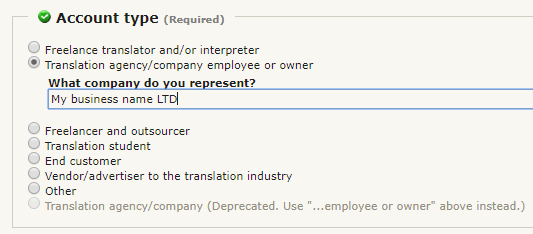
 icon usually shown below or next to the profile feature. This will directly take you to the section you would like to update.
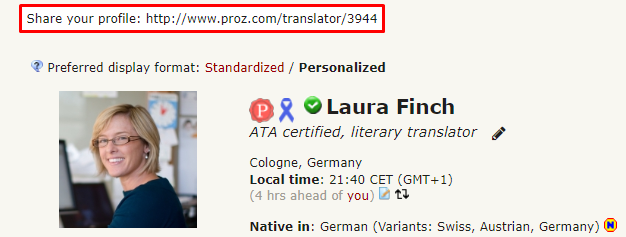
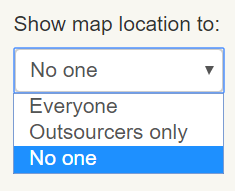

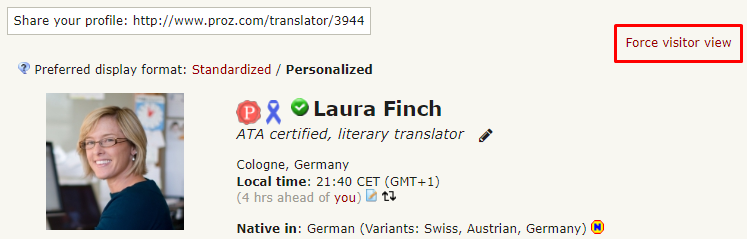
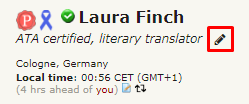


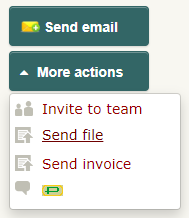
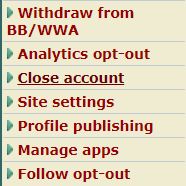
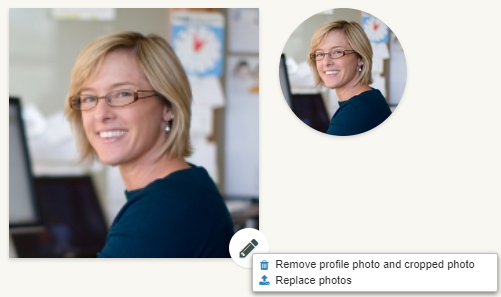

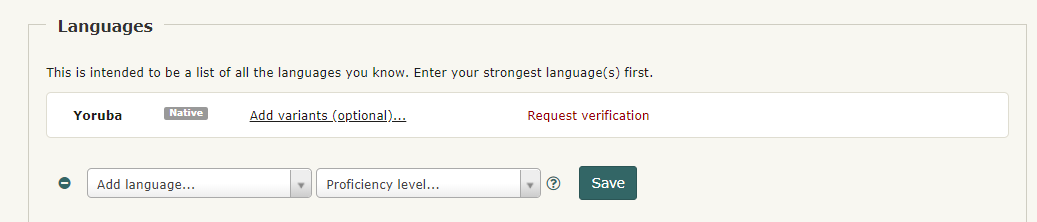
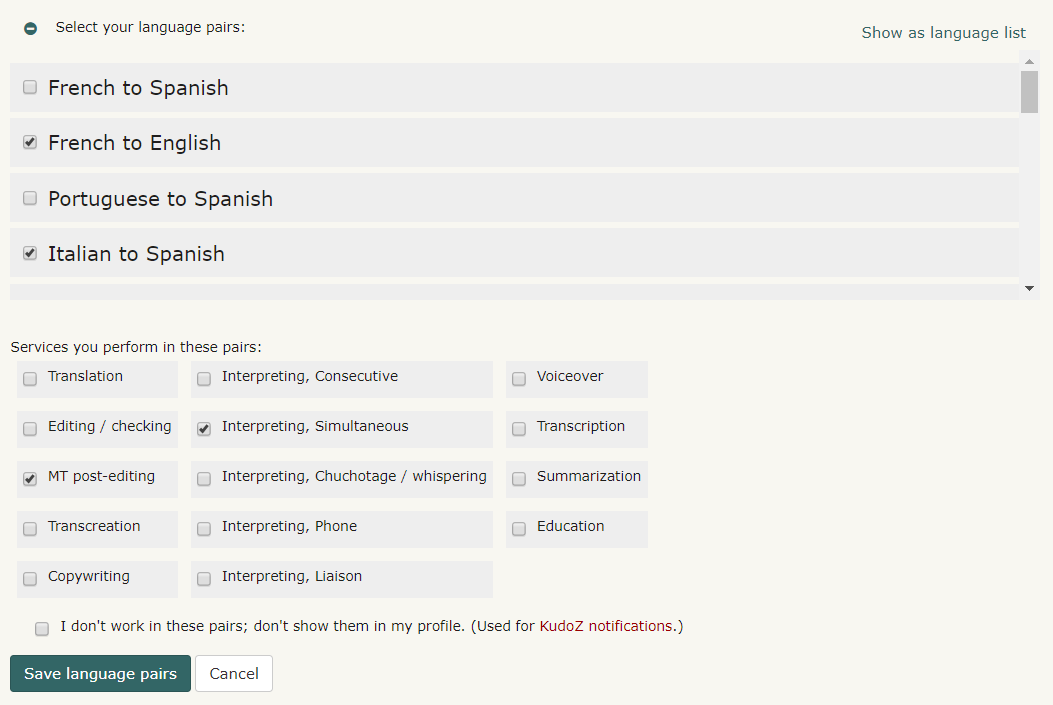

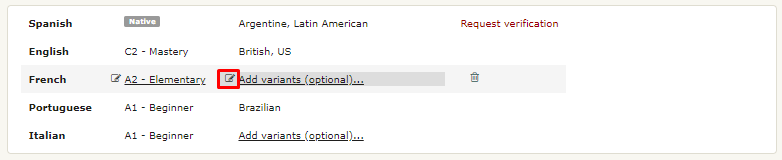
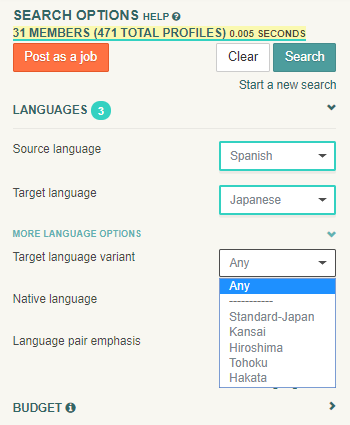
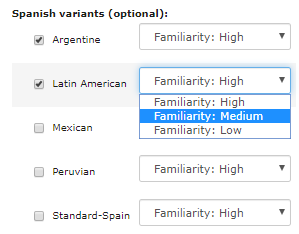

 is used to represent native languages that have been verified by the community-driven
  is used to represent native languages that have been reported as such by the user, but have not been verified by the community-driven